Services: Installation (Full Version) & Application Error handling Support Validity: One-Time Payment & Lifetime Access System OS: Windows 64-bit Language: English Support process: PC Remote Access/ TeamViewer/File Download
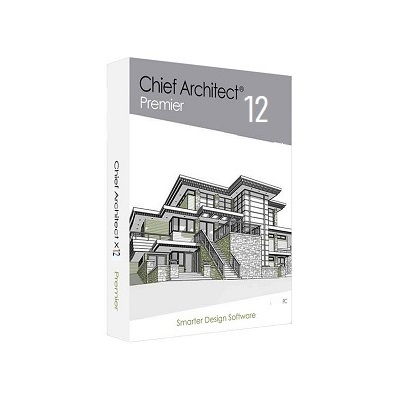
1. Check for and Install Program Updates Program updates contain improvements to the original release version and we recommend using the most current version available. By default, Chief Architect Premier X12 checks for program updates every day when you launch the program.
2. Review the New Features List There are a number of important reasons why you should familiarize yourself with the new and improved features in Chief Architect Premier X12: • New and improved features allow you to produce drawings more efficiently, so it is to your advantage to use them. • Some changes to existing functionality may affect your accustomed drawing style and thus you are productive if you are not aware of them. • New features may affect your choice of settings in your template files, as well as your preferred Preferences settings.
3. Migrate Legacy Library Files Library content from previous program versions cannot be installed or copied into the Chief Architect X12 library. If you have Chief Architect Premier version X5 through X10 installed on your computer, the Migrate Settings dialog will display after you activate the license, allowing you to migrate Preference settings, toolbars, library content, and more for use in Chief Architect X12. If multiple legacy versions are present on the system, only the data associated with the most recent will be migrated.
4. Migrate Custom Graphics Files If you have custom graphics files, including textures, images, or backdrops, that you were using in a previous program version, you can copy them manually using your operating system for use in Chief Architect Premier X12.
5. Review Your Preferences Settings Although you can migrate your Preferences settings from Versions X5 through X10 into Version X12, the settings that are available in Version X12 may differ from the previous program versions. You should review all the settings in the Preferences dialog to make sure that they are set to suit your drawing needs. 6. Create a new custom Template Plan and Layout files Chief Architect Premier X12 installs a selection of template plans and layout files that have been set up to take advantage of the program’s updated tools and features. Although you can migrate your template files for use in Version X12, for best results, it is recommended that you either: • Use the installed templates when creating new plans and layout files in Chief Architect Prem X12 • Use the installed templates as the basis for creating new custom templates.
7. Set up Custom Toolbar Configurations It is possible to migrate toolbar configuration files from previous versions to Chief Architect Premier X12; however, it is possible that your migrated toolbars will be missing new tools available in Version X12. We recommend that you set up your custom toolbars the way you would like them in Chief Architect X12. You may find it most effective to customize your toolbars as you get used to working in the new program version, rather than beforehand.
8. Backup Entire Plan Before migrating a legacy file created in Chief Architect X10 or prior, it is a good idea to open the plan in the program version in which it was created and use the Backup Entire Plan tool (Export Entire Plan in version X3 and prior) to export the plan with all associated support files, including textures, backdrops, and images.
Computer System Requirements – Chief Architect Premier X10
– PC Minimum – Windows 64-bit 10 / 8 / 7 – Multi-core processor – 4 GB of memory – Video Card1 – 1 GB of memory – OpenGL 3.3 or higher – 5 GB of available hard disk space
Keywords: chief architect premier x9 x14 x13 download x12 free x10 x11 for mac x8 cost x5 x7 v23 3 0 81 x6 x64 software price crack home designer suite architecture design sale 3d house architectural drawing pro programs professional room planner app cheap program essentials chef builder review buy full version training tutorial rendering 10 online designers hire reviews cheif how much does expert student library kitchen arch trial 2019 2020 2021 2022 2023 2024 2025 buy install perpetual license cost price purchase subscription cheap student software for sale lifetime
Reviews
There are no reviews yet.
Only logged in customers who have purchased this product may leave a review.




Reviews
There are no reviews yet.